
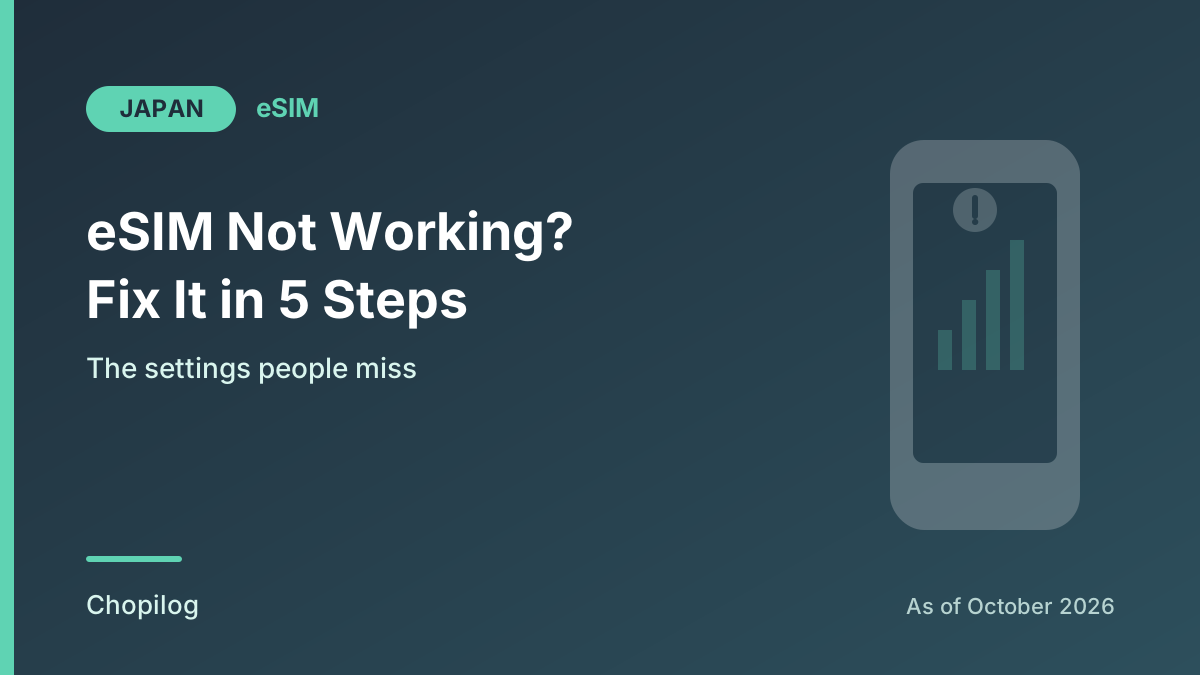
You land, the signal bars show full strength, and your maps app still spins forever. We live in Japan, and this is the single most common tech question friends ask us the moment they land: "the eSIM says it's connected, but nothing loads." Almost every time — not sometimes, almost every time — it turns out to be the exact same setting, buried one menu deeper than people think to look. This guide walks through the fixes in the order that actually works, so you check the high-probability cause first instead of restarting your phone five times.
First: turn Data Roaming back on for the Japan line
If your eSIM shows signal bars but no data moves, this is almost certainly it. An eSIM profile can be "installed" and even show bars on the status icon without actually being allowed to carry data, because data roaming for that specific line is off by default on most phones until you switch it on.
- iPhone: Settings → Cellular → tap the Japan eSIM line → Cellular Data Options → turn on Data Roaming. On a dual-SIM phone the toggle sits one level inside whichever line you're checking, which is exactly why people miss it.
- Android / Pixel: Settings → Network & internet → SIMs → tap the Japan eSIM → turn on Roaming.
Apple's own support pages confirm this is a per-line setting, not a global one: on a dual-SIM or dual-eSIM phone you open the specific line first, then Cellular Data Options, then Data Roaming. It is easy to toggle roaming for your home line by mistake and never touch the Japan one.
Second: make sure the eSIM is actually the line doing the work
Separate from roaming, your phone has its own setting for which line handles cellular data at all. If your home SIM or eSIM is still selected there, the Japan eSIM can be fully active and still never get used.
- iPhone: Settings → Cellular → Cellular Data → select the Japan eSIM.
- Android: Settings → Network & internet → SIMs → Mobile data → select the Japan eSIM.
If your phone has automatic data switching turned on for dual-SIM use, turn that off too — it exists to save you money by quietly sliding data back to whichever line it thinks is cheaper, which in Japan means it can slide straight back to your (expensive, roaming) home line without telling you.
Still nothing? Force a reconnect
If both of the above are already correct, the phone's radio may simply be stuck on the handshake it had before you landed.
- Turn Airplane Mode on, wait about 30 seconds, then turn it off. This forces the phone to re-negotiate with the local network from scratch.
- If that does nothing, restart the phone once. A full reboot clears cached network state that a simple airplane-mode toggle sometimes doesn't.

Every single time a friend texts us "help, no data," it's the roaming toggle, isn't it?

Pretty much. We walk them through the same four taps every time before we even ask what phone they have.
Android only: check the APN
Most eSIM providers configure the Access Point Name (APN) automatically when the profile installs, but on some Android phones — especially with providers whose network runs on a partner carrier's infrastructure — the field is left blank and data simply won't start without it. Go to Settings → Network & internet → SIMs → tap the Japan eSIM → Access Point Names, and enter the exact value from your provider's setup email or help page. Don't guess it; a wrong APN behaves exactly like no APN at all. iPhones rarely need this step, since Apple's eSIM flow sets the cellular data network automatically from the carrier profile.
Weak signal in the mountains or on a small island? Try picking the network manually
Japan's travel eSIMs ride on one of the country's own mobile networks (typically NTT Docomo or KDDI, depending on the plan), and automatic network selection usually finds the strongest one fine in cities. In mountain valleys, on smaller islands, or deep in a train tunnel, automatic selection can get stuck searching. Turning off automatic network selection and manually picking from the list sometimes finds a usable signal faster than waiting for the phone to decide on its own. Switch it back to automatic once you're back in range of normal coverage.
Don't delete the profile to "start over"
This is the one mistake that turns an annoying ten minutes into a ruined trip: deleting the eSIM profile to reinstall it. Every provider we've checked treats the QR code and the profile as single-use. Once it's installed on a device, that specific code generally cannot activate a second time, even on the same phone. If your current profile isn't working, work through the steps above first. If you genuinely suspect the profile itself is broken, contact the provider's support before you delete anything — most providers can push a fresh profile or diagnose it remotely, but almost none can simply "re-send the same QR code."
If you installed before you landed, check you didn't activate too early
On plans where the validity clock starts at the eSIM's first connection rather than at installation, turning on data roaming while you're still at home or mid-flight (if the plane has Wi-Fi-calling quirks) can register as your first connection and start burning a travel day before you've arrived. We cover the buy/install/activate distinction and exactly when to flip each switch in our guide to timing your Japan eSIM activation. If you're not sure your phone supports eSIM at all before you buy one, check our eSIM compatibility guide first.
Try it in this order
| Step | What to check | Where (iPhone / Android) |
|---|---|---|
| 1 | Data Roaming on for the Japan line | Cellular → line → Cellular Data Options / Network & internet → SIMs → Roaming |
| 2 | Japan eSIM selected as the data line | Cellular → Cellular Data / Network & internet → SIMs → Mobile data |
| 3 | Airplane mode toggle, then restart | Control Center or Settings |
| 4 | APN set correctly (Android mainly) | Network & internet → SIMs → Access Point Names |
| 5 | Manual network selection in weak-signal areas | Cellular → Network Selection / Network & internet → Mobile network |
If a provider's plan is genuinely a bad fit rather than a settings problem — wrong amount of data, no voice option when you needed one — our eSIM comparison and our guide on what to do when you run out of data mid-trip cover those cases separately.
FAQ
My eSIM shows full signal bars but nothing loads — what does that mean?
Full bars mean the phone can see the network, not that your line is allowed to carry data. That combination almost always points to Data Roaming being off for that specific line, which is the first thing to check.
Should I just delete and reinstall the eSIM if nothing works?
No. Providers generally issue the QR code as single-use, so deleting the profile can mean you can't reinstall it at all. Work through the settings checks first and contact the provider's support before deleting anything.
Why does it work in Tokyo but drop out in rural areas or small islands?
Coverage on the underlying Japanese network your eSIM rides on (Docomo or KDDI, depending on the plan) can be thinner outside major cities. Switching from automatic to manual network selection sometimes picks up a usable signal faster in those spots.
Most of the time, this is a four-tap fix, not a broken product. Check the roaming toggle first, confirm the right line is selected for data, and only reach for the provider's support line if both of those are already right.